Guide · Practitioner · 20 min read
The cold email deliverability checklist, from domain to first reply
A pre-flight and in-flight checklist for cold email senders: domain, authentication, mailbox limits, list quality, tracking, content, pacing, bounce shield and monitoring.
Cold email fails quietly. Nothing bounces, the sending log says delivered, and the replies simply stop. By the time you notice, the domain has a history you cannot edit. This guide is the checklist we wish every team had run before their first campaign, and kept running while campaigns were live.
It is written for founders, sales leads and SDRs who send cold email themselves or run a small team that does. You do not need to be an email engineer. You do need to be willing to look at DNS records once, set a few limits, and check a tab every week.
After reading it you will be able to choose a sending domain, confirm the three authentication records pass, set daily limits that a new mailbox can carry, import a list without poisoning it, track opens and clicks without borrowing someone else’s reputation, pace and rotate sending, stop a bad campaign automatically, and read the monitoring so you know which of those steps to revisit when something goes red. Each chapter ends with a checklist block you can copy into your own runbook.
Choose the sending domain before anything else
Every reputation signal that receiving servers use is attached to a domain, not to a mailbox and not to a person. Gmail and Microsoft look at the domain in the From address, the domain that signed the message, and the domain in any links, and they remember how mail from those domains has behaved. That is why the first decision in cold email is which domain sends it.
Main domain or a separate one
Sending cold email from the domain your company uses for invoices, support and internal mail puts all of that on the same reputation. One bad list, one campaign with a rising bounce rate, and the finance team’s payment reminders start landing in spam. Most teams therefore register a separate domain for outbound, close enough to the main one that a prospect recognises it, and redirect its website to the main site so that anyone who checks it finds a real company.
The trade-off is trust. A brand new domain has no history at all, which is a mild negative in itself, and it needs its own authentication records and its own warm-up period. We go through the argument in detail in should you send cold email from your main domain. The short version: use a separate domain unless your volume is tiny and your list quality is excellent, and treat the separate domain as a real asset rather than a disposable one.
One domain or several
If you plan to run several mailboxes, decide how many share a domain. Mailboxes on the same domain share its reputation entirely, so three mailboxes on one domain give you sending capacity but no isolation. Two domains with two mailboxes each give you a fallback if one domain has a bad week. More domains also means more DNS records to keep correct and more places for a mistake to hide, so do not multiply them for the sake of it.
Whatever you choose, write it down: which domain sends what and who owns the DNS login. The domain is the unit you monitor for the rest of this guide.
Checklist: domain
- A dedicated sending domain exists, or a deliberate decision has been made to use the main domain and why.
- The sending domain’s website redirects to the real company site.
- Someone on the team can log in to the DNS provider and knows the record types by name.
- The number of mailboxes per domain is decided and written down.
Make SPF, DKIM and DMARC pass and align
Three DNS records tell receiving servers whether a message that claims to come from your domain really does. SPF lists the servers allowed to send for the domain. DKIM adds a signature to every message so the receiver can prove it was not altered on the way. DMARC tells the receiver what to do when the other two fail and where to send reports. All three live on the domain, so they protect every mailbox at once and break every mailbox at once.
SPF: who may send
SPF is a single text record. It lists the mail servers allowed to send for your domain, usually through include entries pointing at your mailbox provider. Two things break it in cold email setups. The first is having two SPF records instead of one; the receiver treats that as a permanent error. The second is adding too many includes from different tools, because the specification caps the number of DNS lookups a receiver will perform while evaluating the record. Once you cross that cap the record fails for everyone, including your mailbox provider. The specification is RFC 7208 if you want the exact rules.
DKIM: was the message altered
DKIM is a key pair. Your mailbox provider signs each outgoing message with the private key and publishes the public key in DNS under a selector. Google Workspace and Microsoft 365 both generate the record for you; your job is to copy it into DNS exactly and switch signing on. A common failure is publishing the key and never enabling signing on the provider side, so the record exists but no message carries a signature.
DMARC: what to do on failure, and alignment
DMARC does two things. It sets a policy for messages that fail SPF and DKIM, from none (report only) through quarantine to reject. And it introduces alignment: the domain in the visible From address must match the domain that SPF or DKIM authenticated. A message can pass SPF and DKIM on a technicality and still fail DMARC because the authenticated domain is a provider’s, not yours.
Start at p=none while you confirm every legitimate sender aligns, then tighten. Moving straight to p=reject with a misconfigured tool in the chain silently drops your own mail. The full walk-through, including how to read the reports, is in SPF, DKIM and DMARC for cold email senders.
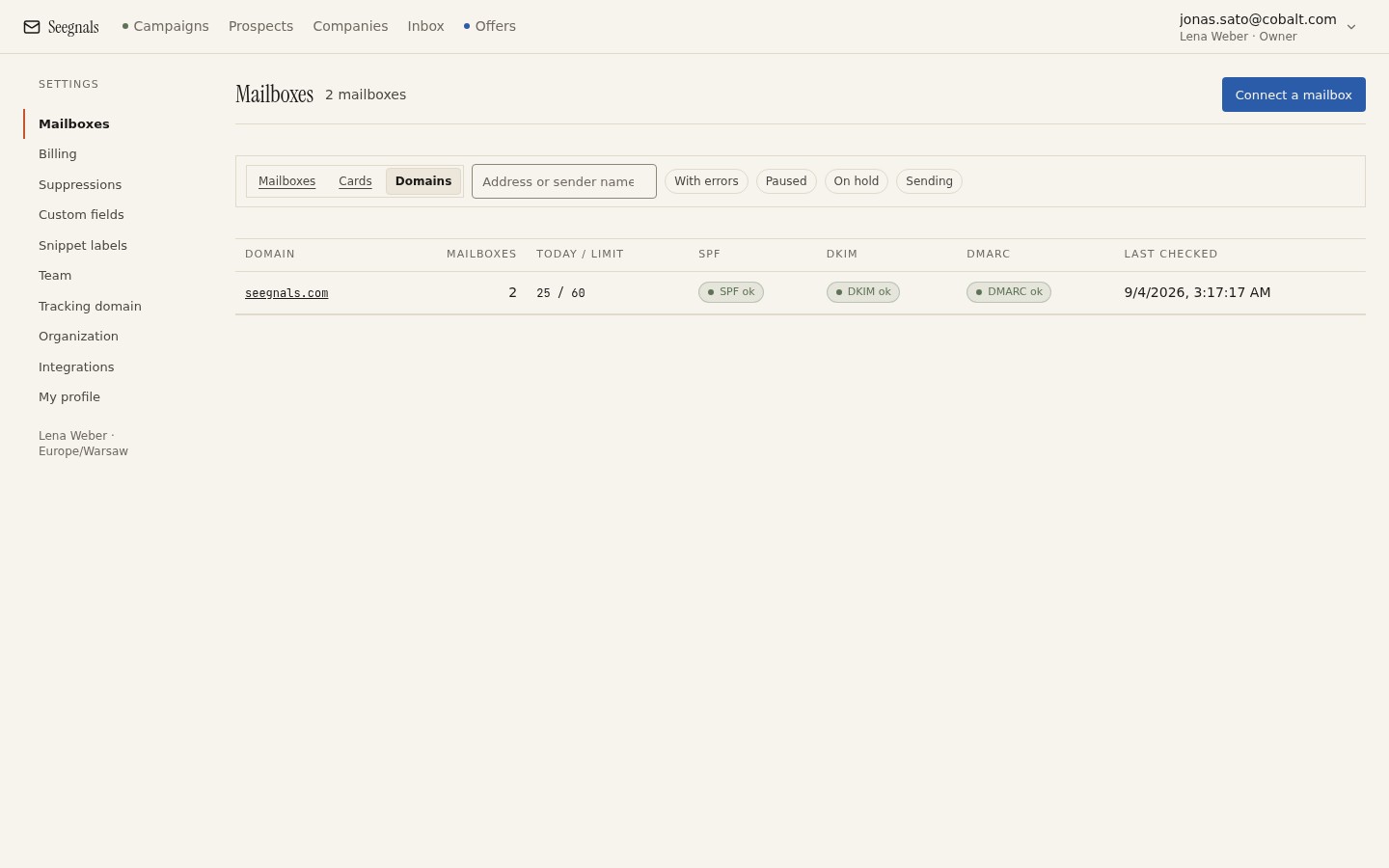 The Deliverability tab checks the three records hourly, per domain. A failed lookup shows as unknown, which is not the same as missing.
Checklist: authentication
- Exactly one SPF record on the sending domain, with only the includes you use.
- DKIM record published and signing enabled on the provider side; a test message to your own mailbox shows a DKIM pass in the headers.
- DMARC record present, starting at p=none with a reporting address you actually read.
- The From domain aligns with the DKIM signing domain or the SPF domain.
- The records are checked again after any tool is added or removed from the domain.
- Before every new campaign, the Deliverability tab shows pass on all three for every sending domain.
Set mailbox age and daily limits you can defend
A mailbox that has never sent anything and starts at full volume on day one behaves, to a receiving server, exactly like a compromised account. Age and gradual volume are the two signals that separate a new legitimate sender from a bot, and neither can be faked in software.
Age and warm-up as a practice
Warm-up means sending a small, rising number of genuine messages from a new mailbox over a period of weeks, so that receiving servers see a history before the first campaign. The messages should be real, get replies, and not be marked as spam. Seegnals does not do warm-up for you today; it is planned through a partner and shows as coming soon. Until then, treat warm-up as a practice: use the new mailbox for ordinary correspondence, reply to people, and let it exist for a few weeks before it carries a campaign.
The daily limit is yours to set
In Seegnals every mailbox has its own daily limit and you set it. Nothing adapts it for you; there is no automatic slowdown, and that is deliberate. A limit you set is a limit you understand and can defend when you look at the numbers. Start low on a new mailbox, watch bounces and replies for a week, and raise the limit in steps. When you need more volume, add a mailbox rather than pushing one harder. Three mailboxes at 30 a day give you 90 a day with a third of the risk concentrated in each. The reasoning and the arithmetic are in cold email daily sending limits per mailbox.
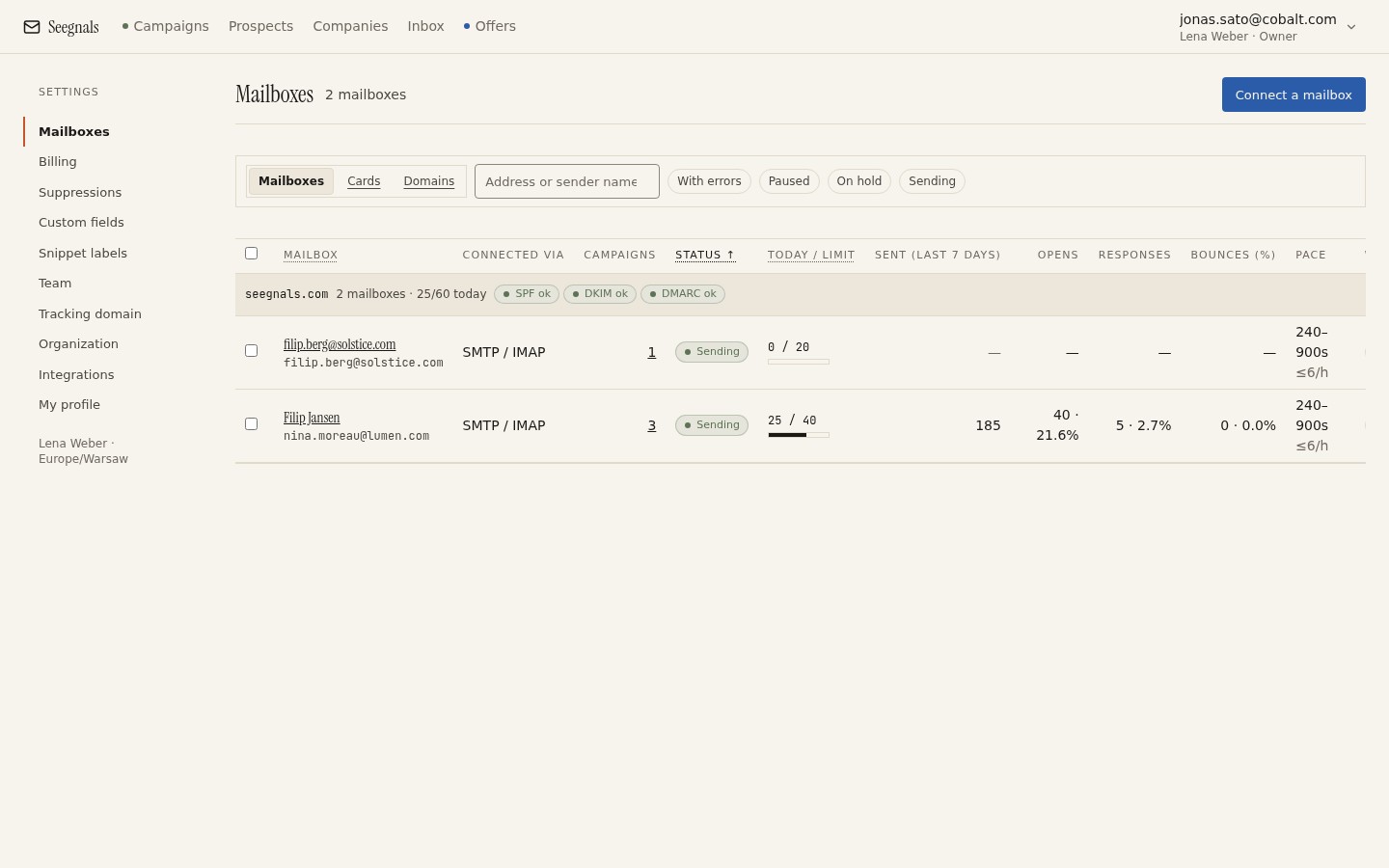 Each mailbox carries its own daily limit and shows how much of it today’s sending has used.
Connecting mailboxes properly
Connect Gmail, Google Workspace and Microsoft 365 through OAuth, and any other mailbox over SMTP plus IMAP. IMAP matters: without it replies cannot be read, classified and used to stop the sequence. The steps are in connect a mailbox: Gmail, Microsoft 365 or SMTP.
Checklist: mailboxes
- Each new mailbox has existed and sent ordinary mail for weeks before joining a campaign.
- A daily limit is set on every mailbox and written down with the date it was last raised.
- Limits are raised in small steps, and only while bounces and complaints are flat.
- Volume growth comes from more mailboxes, not from bigger limits on one.
- Mailboxes connect over OAuth where the provider supports it, and over SMTP plus IMAP otherwise, never SMTP alone.
- The mailbox signature and display name match a real person who will answer replies.
Import a list that will not poison the domain
Everything above protects the domain from your own configuration. The list protects it from other people’s data. An address that no longer exists produces a hard bounce; enough hard bounces in a short period and receiving servers conclude you are sending blind. A list bought or scraped without verification is the fastest route from a healthy domain to a blocked one, and no authentication record can compensate for it.
Verification on import
Verification checks, for each address, whether the domain accepts mail and whether the specific mailbox exists. Seegnals runs it when you import, so the check happens before any message is planned, not after the first bounce. Results are valid, invalid, or unknown. Invalid addresses should never be sent to. Unknown addresses need a decision, which brings us to catch-all domains.
Catch-all domains are unknown, not valid
A catch-all domain accepts mail to any address, whether or not the mailbox exists, so the verification server cannot tell a real address from a typo. Some tools report these as valid because the server said yes. That is a guess dressed as a result. Seegnals reports a catch-all as unknown and tells you so. The honest response is to send to unknown addresses at a smaller volume, watch how they bounce, and lower your exposure to any single catch-all domain. We cover the mechanics in catch-all domains and email verification.
Duplicates, suppressions and the To check queue
Two more things are caught at import. Duplicates, where the same address arrives twice from two spreadsheets, would otherwise send two sequences to one person and look exactly like the spam it is. Suppressed addresses, people and domains you have been asked never to contact again, would be a compliance problem as well as a deliverability one. Both are stopped before they enter a campaign.
Then, before the first send, the To check queue holds back any prospect that looks off: a missing field that a snippet needs, an address that could not be verified, a suspicious domain, a duplicate that slipped through mapping. You fix or skip each one. Nothing leaves until you have looked at it. The queue is described in the To check queue: what it catches before sending, and the wider preparation in cold email list quality checklist before import.
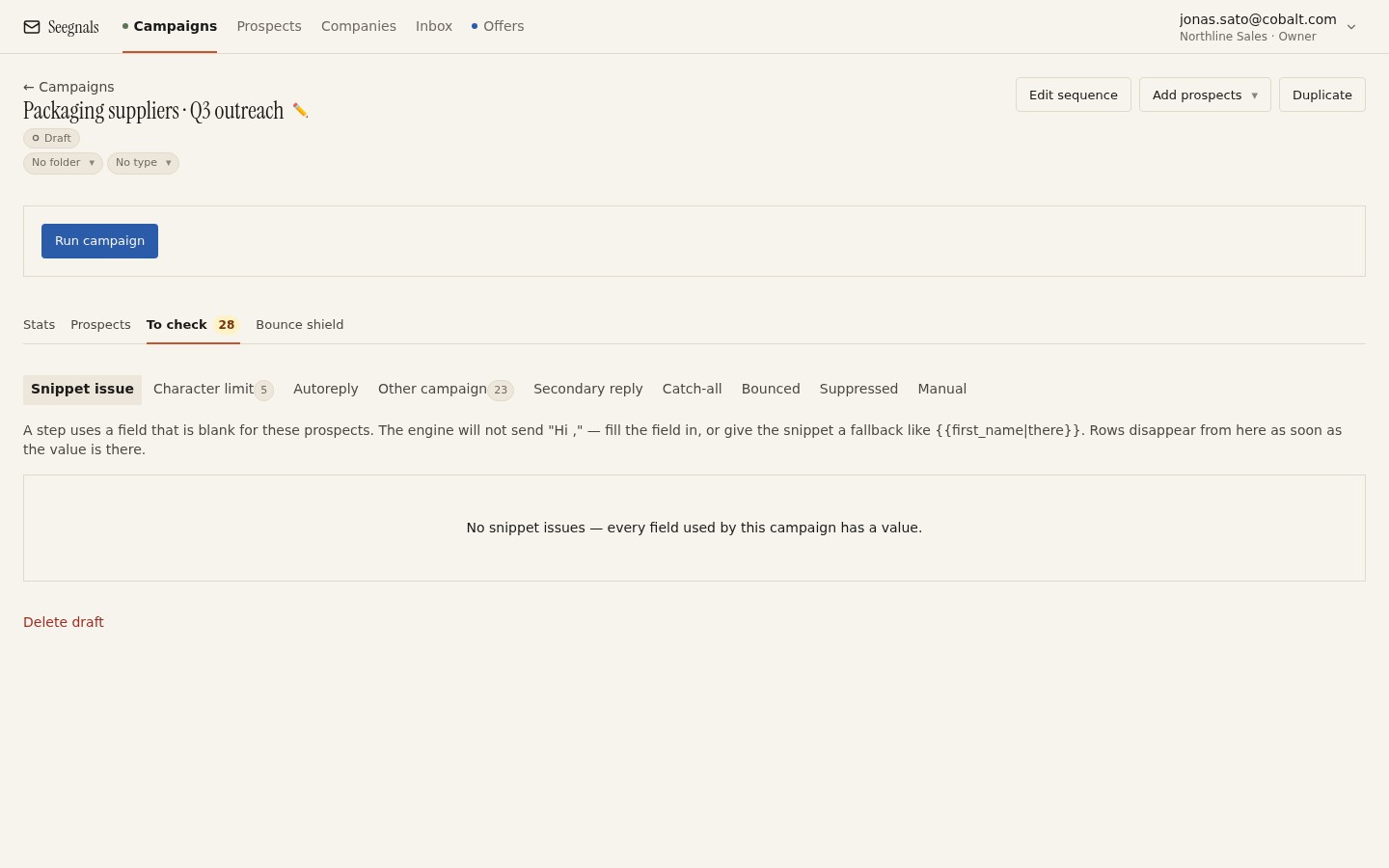 Prospects in the To check queue have not been sent anything. Each row tells you why it stopped and what to fix.
Checklist: list
- Every list is verified on import; invalid addresses are removed, not kept for later.
- Catch-all results are treated as unknown and sent at reduced volume, never as valid.
- Duplicates and suppressed addresses are caught at import and not re-added by hand.
- Role addresses (info@, sales@, office@) are removed unless they are the honest target.
- The To check queue is empty, or every item in it has been fixed or skipped, before the campaign starts.
- The source of each list is recorded so that a bad batch can be traced and pulled.
Track opens and clicks only through a domain you own
Open tracking works by placing a tiny image in the message; click tracking works by rewriting links through a redirect. Both involve a host name, and receiving servers look at that host name the same way they look at your sending domain. If the host is shared with hundreds of other senders, your message carries their reputation as well as yours, and you have no say in how they behave.
Custom tracking domain
A custom tracking domain is a subdomain you own, pointed at the tracking service with a CNAME record you verify. Links and the tracking image then use your name, and the reputation of the links is yours alone. In Seegnals, opens and clicks are tracked only through a verified tracking domain. Without one, they are simply not tracked and the interface says so, because tracking through a shared host would undo the care you took with the sending domain. Setup is in custom tracking domain for opens and clicks.
What open rates can and cannot tell you
Even with a tracking domain, open rates are inflated by Apple Mail Privacy Protection, which loads images on the user’s behalf whether or not anyone read the message. The Stats tab shows open rates with a note about this. Use opens as a rough signal of whether mail is reaching inboxes at all, not as a measure of interest, and give more weight to replies and clicks. The detail is in open rates after Apple Mail Privacy Protection.
Checklist: tracking
- A tracking subdomain exists on a domain you own and its CNAME is verified.
- No tracking runs through a shared host; if the domain is not verified, tracking is off and you know it.
- Open rates are read with the Apple Mail caveat in mind and never used as the main outcome.
- The first email has at most one link, to your own domain, with no shortener.
- Images in the first email are limited to the tracking pixel and, if you must, a small signature logo.
Write content that filters and people both accept
Content is the part of deliverability that people over-think and under-do. Filters do look at what you write, but the patterns that hurt are few and specific, and the same patterns also make people delete the message. Fixing them helps twice.
Patterns that hurt
Heavy formatting, many images, attachments in a first message, all-capital subject lines, and phrases built to create urgency all raise the probability of filtering and lower the probability of a reply. A cold email that looks like a plain message from one person to another passes more often, and reads better. Keep the subject short and specific. Write in the first person. Ask one thing.
Personalisation that does not break
Snippets like {{first_name}} or {{company}} pull values from your CSV columns. A missing value that renders as an empty space, or worse as the raw placeholder, tells the recipient and the filter that this is a template. Every snippet needs a fallback. Seegnals holds back prospects with a missing field that a snippet needs in the To check queue, so the empty version never goes out. If you rename a custom field, every sequence that uses it follows, which removes a whole class of typo. The approach is in cold email personalisation with snippets and custom fields.
The unsubscribe path
Every message needs a way out that works. Seegnals adds one-click unsubscribe headers under RFC 8058 and an unsubscribe link in every message. That is required by major providers for bulk senders, and it is also good deliverability: a recipient who can unsubscribe with a click does not press the spam button instead, and a spam complaint hurts far more than an opt-out. Requests land on the suppression list automatically. Read one-click unsubscribe (RFC 8058) for cold email for how the header works.
Checklist: content
- Plain text or minimal HTML; no attachments in the first message.
- One link at most, to your own domain.
- Subject line short, specific, no capitals for emphasis, no urgency words.
- Every snippet has a fallback and the To check queue is clear of missing-field holds.
- Unsubscribe header and link present in every message; the link is tested by clicking it yourself.
Pace and rotate sending like a person would
A receiving server sees timing. Fifty messages leaving one mailbox at exactly nine o’clock with identical gaps is a pattern no human produces. Pacing and rotation exist to make the traffic look like what it is: a small team writing to people during working hours.
Randomised gaps
Seegnals randomises the gap between consecutive messages from a mailbox. A fixed interval, even a generous one, is a fingerprint. Randomised gaps within a sending window remove the fingerprint without slowing you down in any way that matters. The reasoning is in why randomised sending intervals matter.
Sending windows in the prospect’s timezone
Weekdays and hours are set per campaign and applied in each prospect’s own timezone, falling back to the workspace timezone when the prospect’s is unknown. A message that arrives at three in the morning local time is more likely to be ignored and, at volume, looks automated. Set a window that matches a working day where the prospect is, not where you are. See send cold email in the prospect’s timezone.
Rotation across mailboxes, one thread per prospect
A campaign rotates across the mailboxes you selected, in the order you selected, so no single mailbox carries the whole load. A prospect keeps the mailbox they started with, so follow-ups stay in one thread and the recipient sees one person writing, not three. Mixing senders across a sequence is both a deliverability signal and a confusing experience. How rotation works is in mailbox rotation explained.
Follow-ups and campaign length
Each follow-up is another message to the same address; a sequence that goes on too long to someone who has not responded raises complaints. Decide how many steps a sequence has and how many days it spans before it starts. A classified reply stops the sequence for that person automatically, which is the single biggest protection against sending step four to someone who said no at step two. How many follow-ups in a cold email sequence covers the decision.
Checklist: pacing
- Sending window set per campaign to the prospect’s working hours, weekdays only unless you have a reason.
- Gaps between messages are randomised; no fixed interval anywhere.
- Mailboxes rotate in a chosen order, and the daily limits summed across them cover the planned daily volume.
- Each prospect stays with one mailbox for the whole sequence.
- The number of steps and total span are decided before launch and are not extended mid-campaign without a reason.
Set the bounce shield before you need it
Every earlier chapter reduces the chance of a bad campaign. The bounce shield limits the damage when one happens anyway. A campaign that keeps sending while bounces climb is the single most common way a healthy domain becomes a blocked one, because the damage compounds with every hour.
How it works
You set a threshold. When bounces in a campaign cross it, the campaign pauses itself and you receive a notification. Nothing else sends from that campaign until you look. The threshold is yours; the point is that the pause happens at the moment the pattern appears, not when you next open the dashboard. Set it on every campaign, including the ones you trust, because the list you trust is the one you will not be watching. Setup is in setting up the bounce shield.
What to do when it fires
First, do not resume. Open the Bounce shield tab and the Prospects tab filtered to Bounced and look at the addresses. Are they from one domain, one list source, one catch-all? Pull that segment. Check the Deliverability tab for the sending domain in case the cause is on your side rather than the list’s. Only then resume, at a lower daily limit, and watch the next day’s numbers. The broader question of what a bounce rate means is in what bounce rate is safe for cold email.
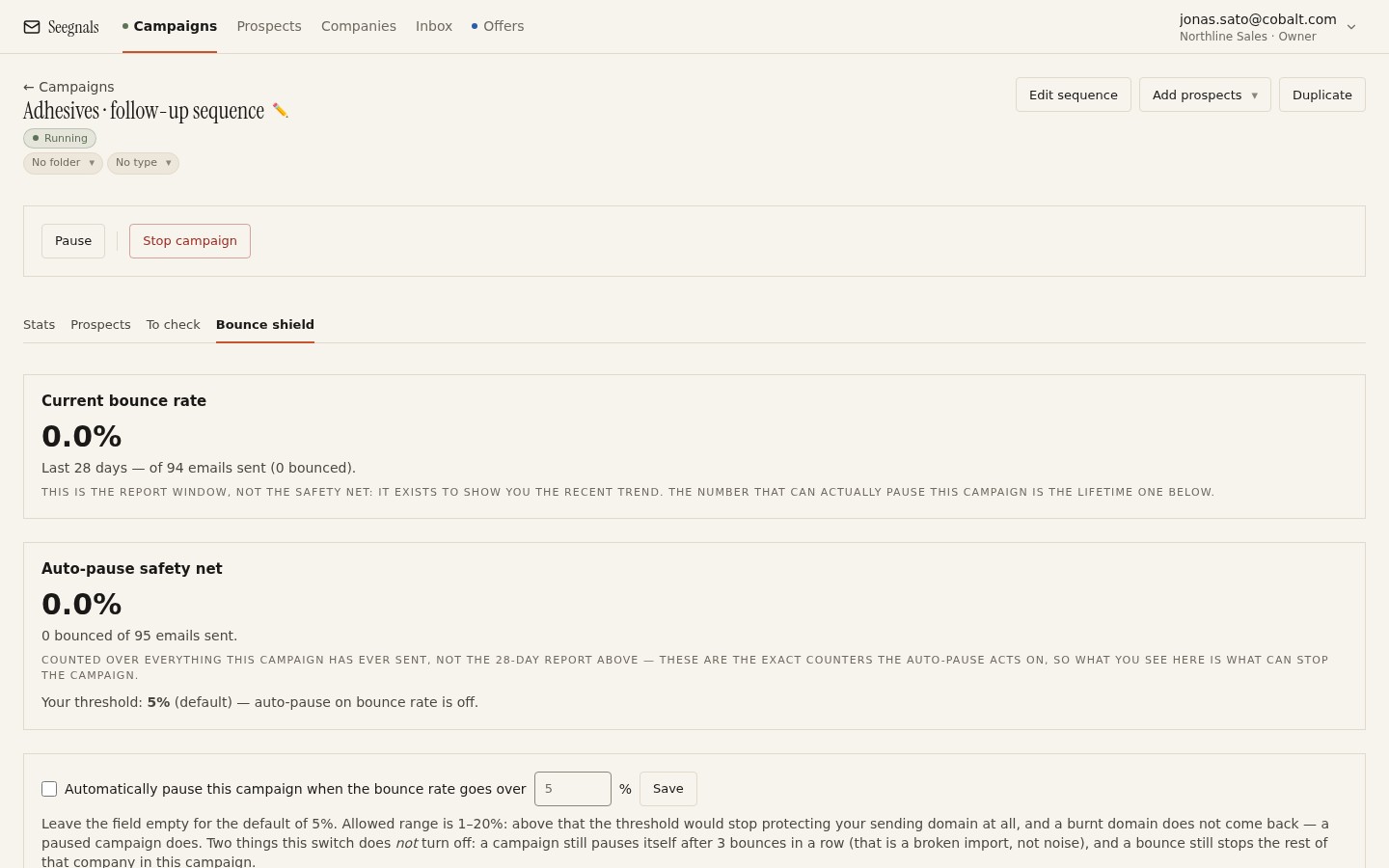 The Bounce shield tab shows the threshold, whether it has fired, and the bounces that triggered it.
Suppression as the permanent memory
Every hard bounce, every unsubscribe and every complaint should end up on the suppression list, by address and where appropriate by domain. Suppression is what stops the same bad address returning with the next CSV. The list exports as CSV so you can carry it between tools. Details in suppression lists by address and by domain.
Checklist: protection
- Bounce shield threshold set on every running campaign, not only the new ones.
- Notifications reach a person who will act the same day.
- After a pause: identify the segment, pull it, check authentication, resume lower.
- Hard bounces and unsubscribes are on the suppression list, by address; repeat offenders by domain.
- The suppression list is exported and kept outside the tool as well.
Monitor per domain, weekly, and know what red means
Deliverability is not a setup task; it is a maintenance task with a setup phase. The records drift when someone adds a tool. The list quality changes with each source. A mailbox provider changes a policy. Weekly monitoring, per domain, is how you find out before the replies stop.
What to look at each week
Start with the Deliverability tab, per sending domain: SPF, DKIM, DMARC, all pass. Then the Stats tab of each running campaign: Delivered against Sent, the Bounced tile, the Opted out tile, and the Replied tile trending in the direction you expect. Click a tile and the Prospects tab opens filtered to those people, so a spike in bounces becomes a list of addresses in one click. Export the CSV if you want a record over time.
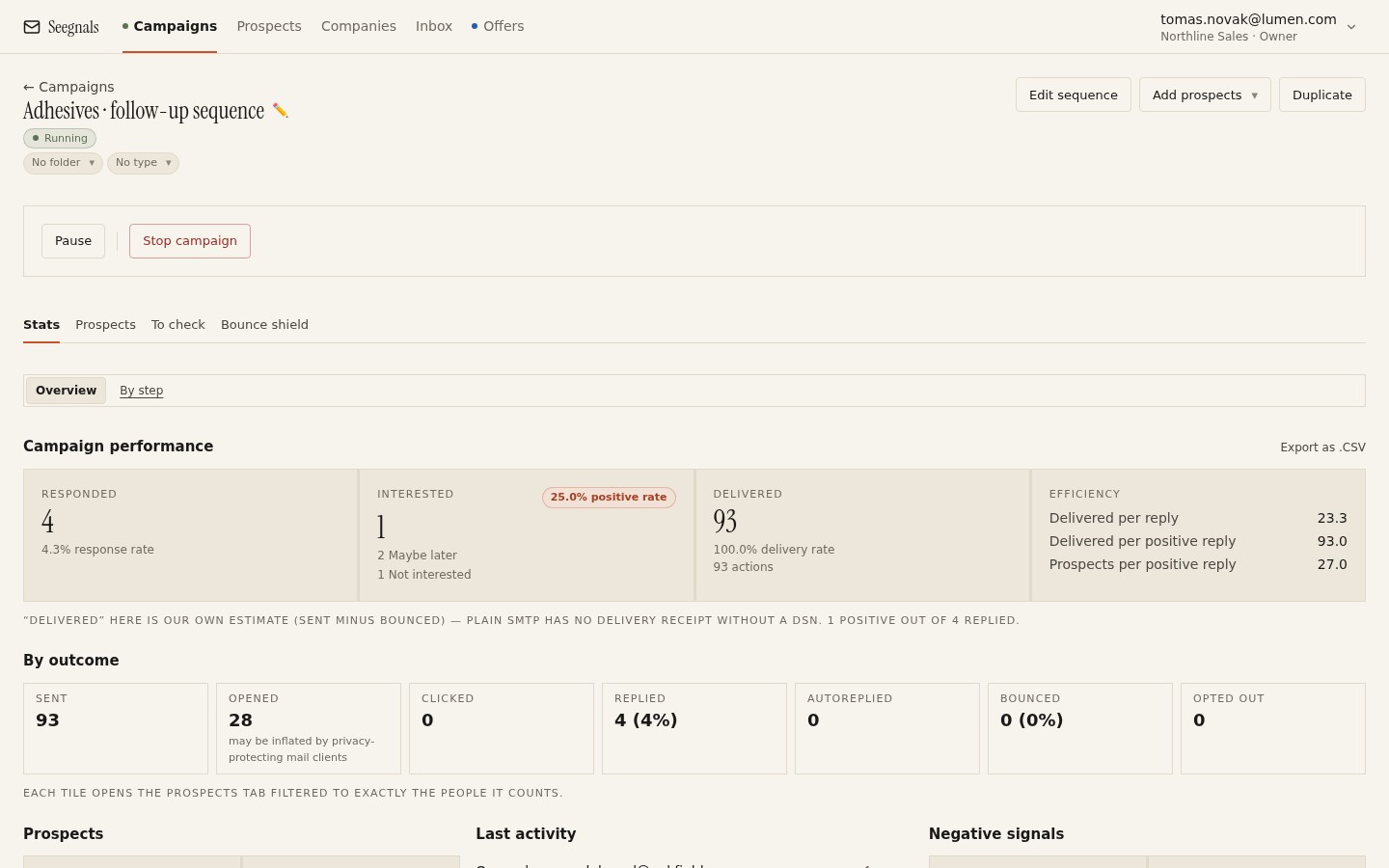 The Stats tab: Delivered, Bounced and Opted out are the deliverability tiles. Click any tile to see exactly who is behind it.
Reading unknown, pass and fail
The Deliverability tab shows three states. Pass means the record was fetched and is correct. Fail means it was fetched and is wrong or absent. Unknown means the lookup did not complete, for instance because a resolver timed out, and it is deliberately not called missing. When you see unknown, wait for the next hourly check or run a lookup yourself before touching DNS. Changing a correct record because of a transient lookup failure is a real way to create the failure you were afraid of.
The inbox is a deliverability signal too
Replies arrive in one inbox from all connected mailboxes, classified automatically as Interested, Maybe later, Not interested, Autoreply / Out of office, Bounce, Unsubscribe request or Other. Two of those classes are deliverability data. Bounce replies that arrive as messages, rather than as SMTP rejections, still count and are still classified. Unsubscribe requests go to suppression. A rising share of Not interested replies phrased with irritation is an early warning of complaints to come. Read sorting replies: Interested, Maybe later, Not now for how the classes are used day to day.
When something goes red
A simple order of operations, so nobody improvises under pressure:
- Pause every campaign on the affected domain. Not the mailbox, the domain, because the records and the reputation are domain-wide.
- Confirm the failure. Run your own lookup for SPF, DKIM and DMARC. If the tab said unknown and your lookup passes, wait one check cycle.
- If a record is wrong, fix it, wait for propagation, confirm pass in the tab.
- If the records pass and bounces or complaints rose instead, find the segment in the Prospects tab and pull it. Check the source of that list.
- Resume at a lower daily limit on each mailbox on that domain. Hold it there for several days while you watch the Delivered and Bounced tiles.
- Write down what happened and what you changed, with the date, so the next person does not repeat the investigation.
Checklist: monitoring
- A named person checks the Deliverability tab per domain every week, and after any DNS or tool change.
- Campaign Stats reviewed weekly: Delivered, Bounced, Opted out, Replied, and the trend, not only the number.
- Unknown is treated as “look again”, not as “missing”.
- Bounce and unsubscribe replies in the inbox are checked, not only SMTP bounces.
- The red procedure above is written down where the whole team can find it.
- A log of changes to domains, records, limits and lists exists and is kept current.
Where to go from here
If you have worked through every checklist, your domain is in better shape than most. The articles below go deeper on the pieces that most often need a second pass.
- SPF, DKIM and DMARC for cold email senders, for the record-level detail and how to read DMARC reports.
- Cold email daily sending limits per mailbox, for how to set and raise limits without guessing.
- Catch-all domains and email verification, for the honest handling of unknown addresses.
- Setting up the bounce shield, for choosing a threshold and what happens when it fires.
- Should you send cold email from your main domain, if the very first decision is still open.
For the product side of these checks, the deliverability page lists what Seegnals checks and what it does not yet do, and the security page covers where the data lives.
Questions people ask
What is a cold email deliverability checklist?
A list of checks you run before a campaign starts and while it runs, covering the sending domain, authentication records, mailbox limits, list quality, tracking, content, pacing and monitoring. Its purpose is to catch the few things that reliably send cold email to spam before they cost you a domain.
Should I send cold email from my main company domain?
Most teams use a separate sending domain that looks like the main one and redirects to it, so that a reputation problem never touches invoices, support or internal mail. The separate domain still needs full SPF, DKIM and DMARC and a real warm-up period.
How many cold emails can I send per mailbox per day?
There is no universal number. Set a daily limit per mailbox in your tool, start low on a new mailbox, and raise it only while bounces and spam complaints stay quiet. Add mailboxes instead of pushing one mailbox harder.
What bounce rate is too high for cold email?
Any bounce rate that is rising is a problem, whatever the absolute figure. A campaign pause triggered by a threshold you set, such as the bounce shield in Seegnals, is the practical way to stop a bad list before it damages the domain.
Do I need a custom tracking domain for cold email?
If you want open and click tracking, yes. Tracking links pointing to a shared host mix your reputation with every other sender on that host. Without a verified tracking domain, Seegnals does not track opens or clicks at all and says so.
What should I do when SPF or DKIM shows as failing?
Pause campaigns on that domain, look up the record yourself to confirm it is really failing rather than an unknown lookup, fix the DNS record, wait for propagation and the next hourly check, then resume at a lower daily limit for a few days.
Written by